> For the complete documentation index, see [llms.txt](https://docs.helix.voodoo.io/llms.txt). Markdown versions of documentation pages are available by appending `.md` to page URLs; this page is available as [Markdown](https://docs.helix.voodoo.io/user-acquisition/integrate-your-mmp/adjust-integration.md).
# Adjust Integration
## Add Helix as a partner
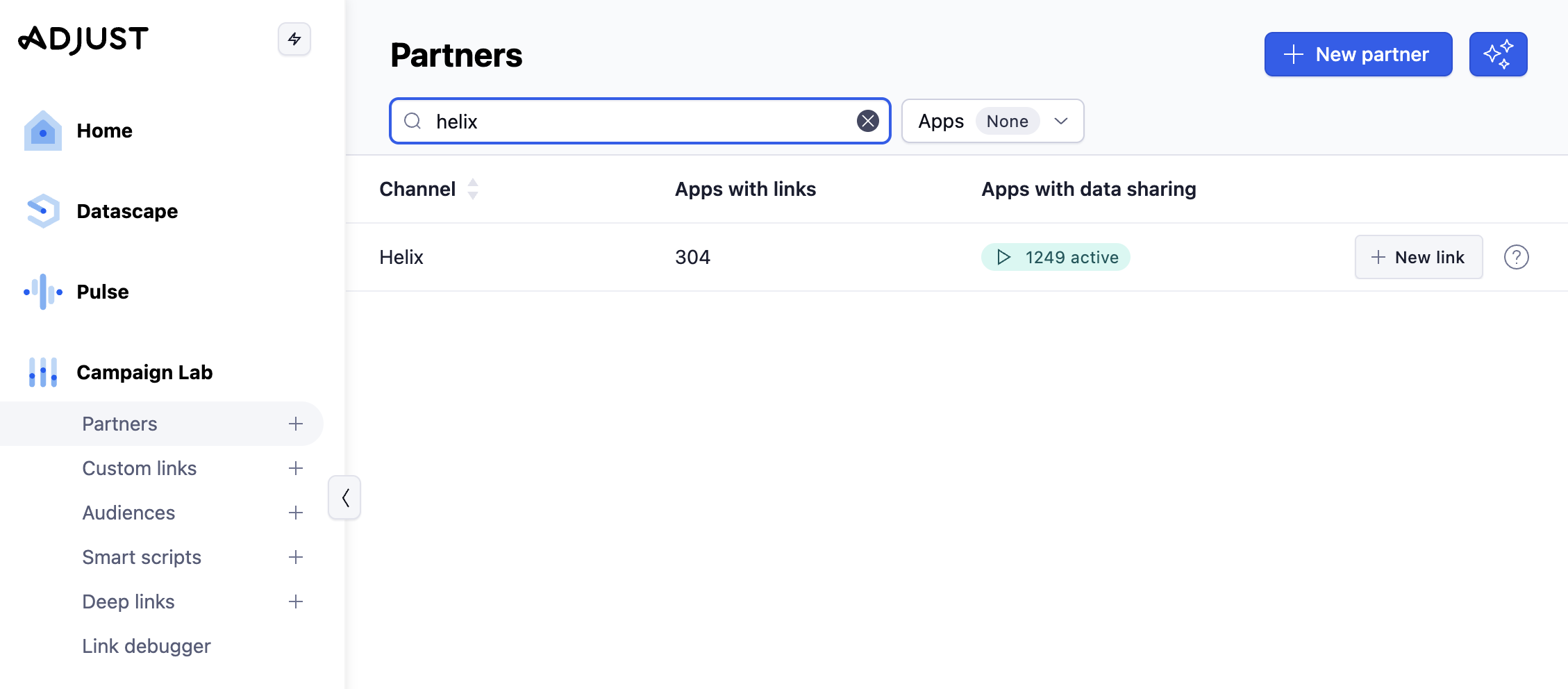
In the Adjust dashboard, go to **Campaign Lab → Partners**, click **New partner**, select **Helix**, and then click **New link** to start the setup.
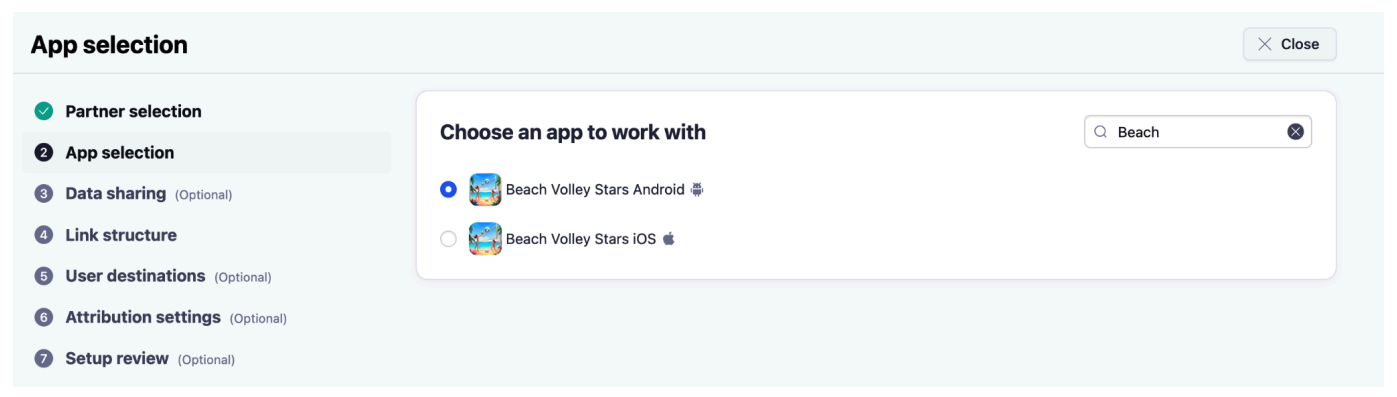
## Select your app
Select the app you want to advertise with Helix. Make sure you choose the correct platform (iOS or Android).
## Share data
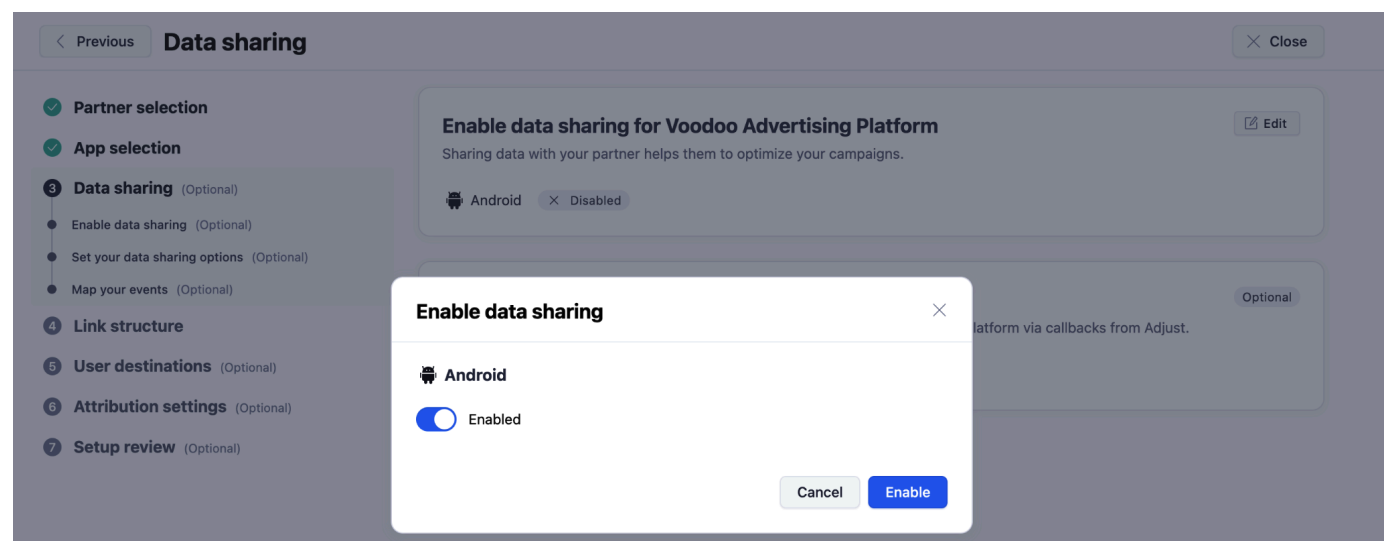
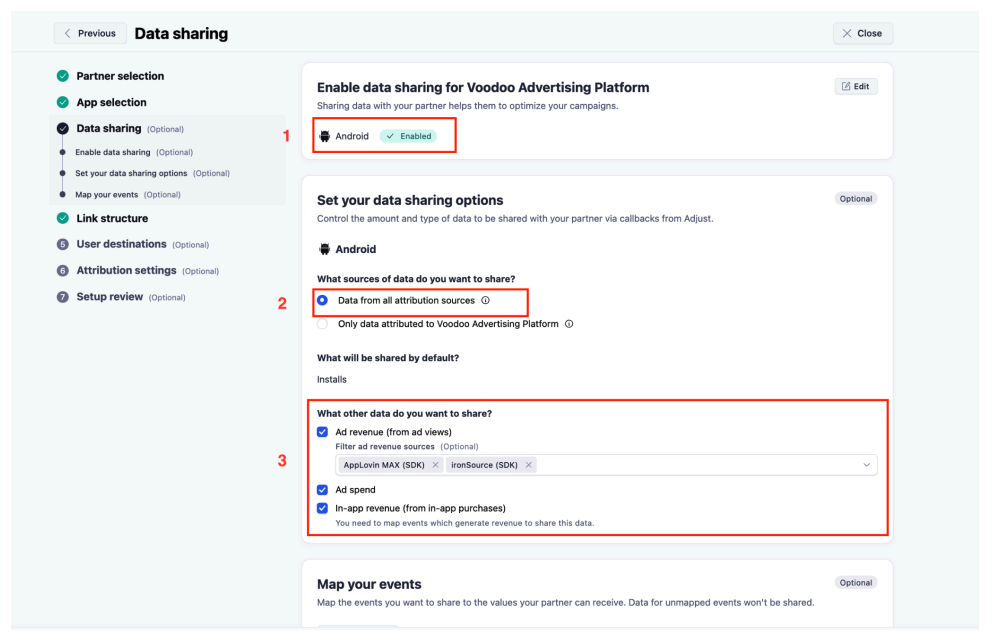
Enable data sharing to allow Helix to optimize campaigns toward revenue, such as ROAS-driven campaigns.
To support effective optimization, select **Data from all attribution sources**. If this option is disabled, optimization may rely on users who were already active.
Select **Ad revenue** and add the mediation SDK you are using. Only include the SDKs that are actually in use and avoid adding multiple versions of the same mediation SDK.
## Map in-app purchase (IAP) events
It is important to map your IAP events so Helix can receive in-app purchase data and use it to optimize ROAS.
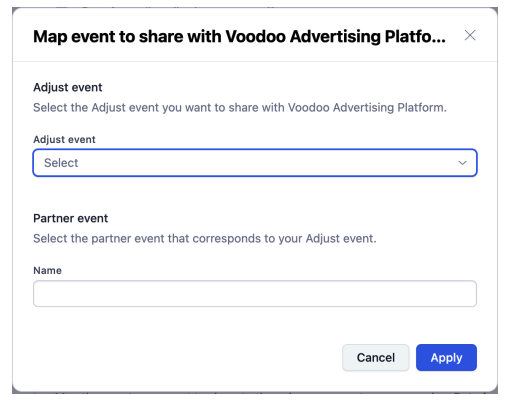
You can use the **Map all events** button to automatically map all existing in-app events using the same event names. Individual events can be edited later if needed.
If you prefer to control which events are shared, click **Add event**, select the relevant IAP event from the Adjust event list, and enter a value in the **Partner event** field.
You can enter any value here, including the Adjust event name. Helix always uses the revenue value associated with the selected Adjust event, regardless of the Partner event name entered.
## Link structure
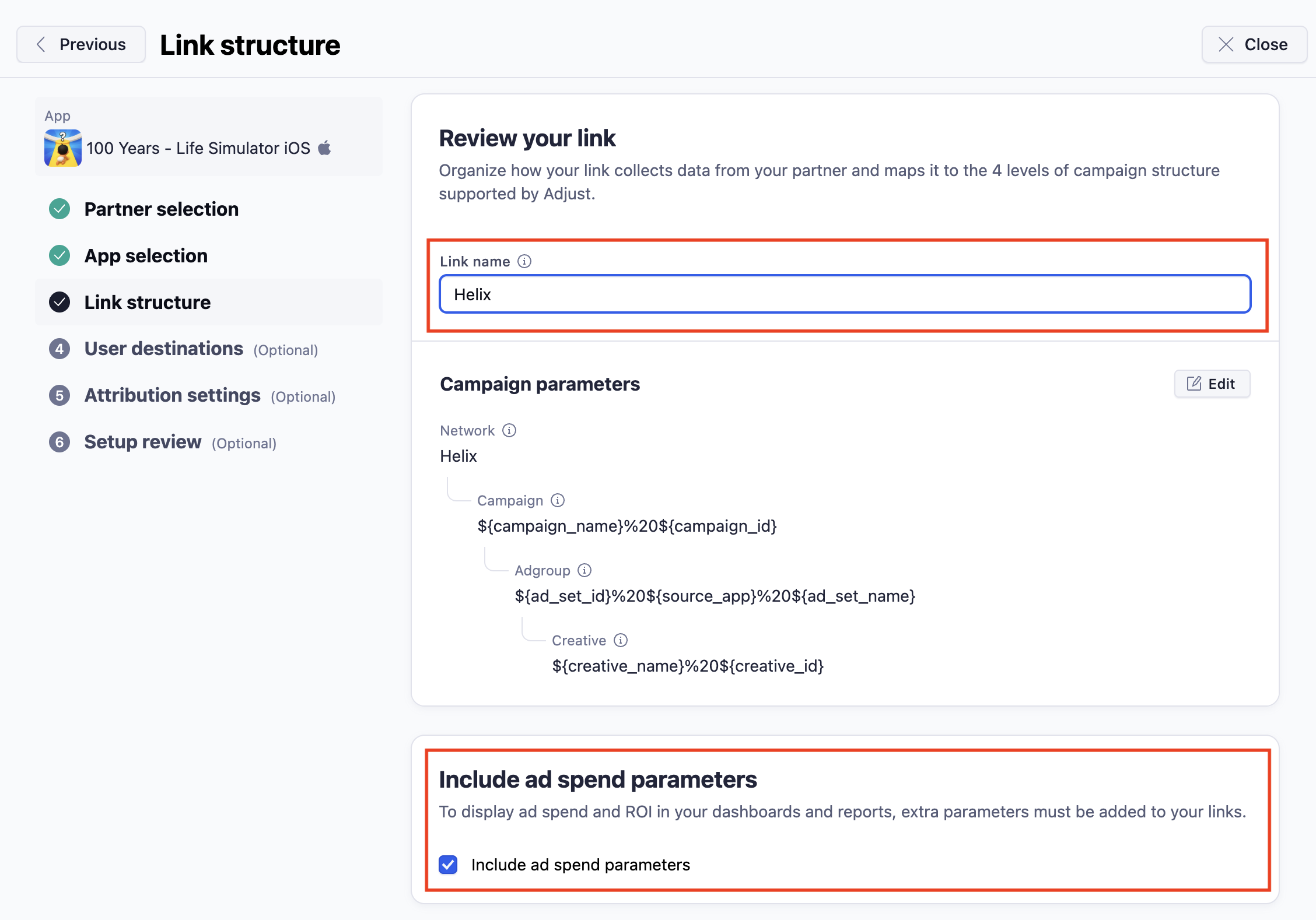
Name the link so it is easy to identify later, for example **Helix**.
Make sure **Include ad spend parameters** is enabled. This is required so ad spend and ROI data can be correctly reported and aligned between Adjust and Helix.
Leave the remaining settings in this step unchanged, then click **Next**.
## User destination
Leave the user destination settings unchanged and click **Next**.
## Attribution setting
Leave the attribution settings as default and click **Next**.
## Setup review
Review the setup and hit **Create link**.
## The link token
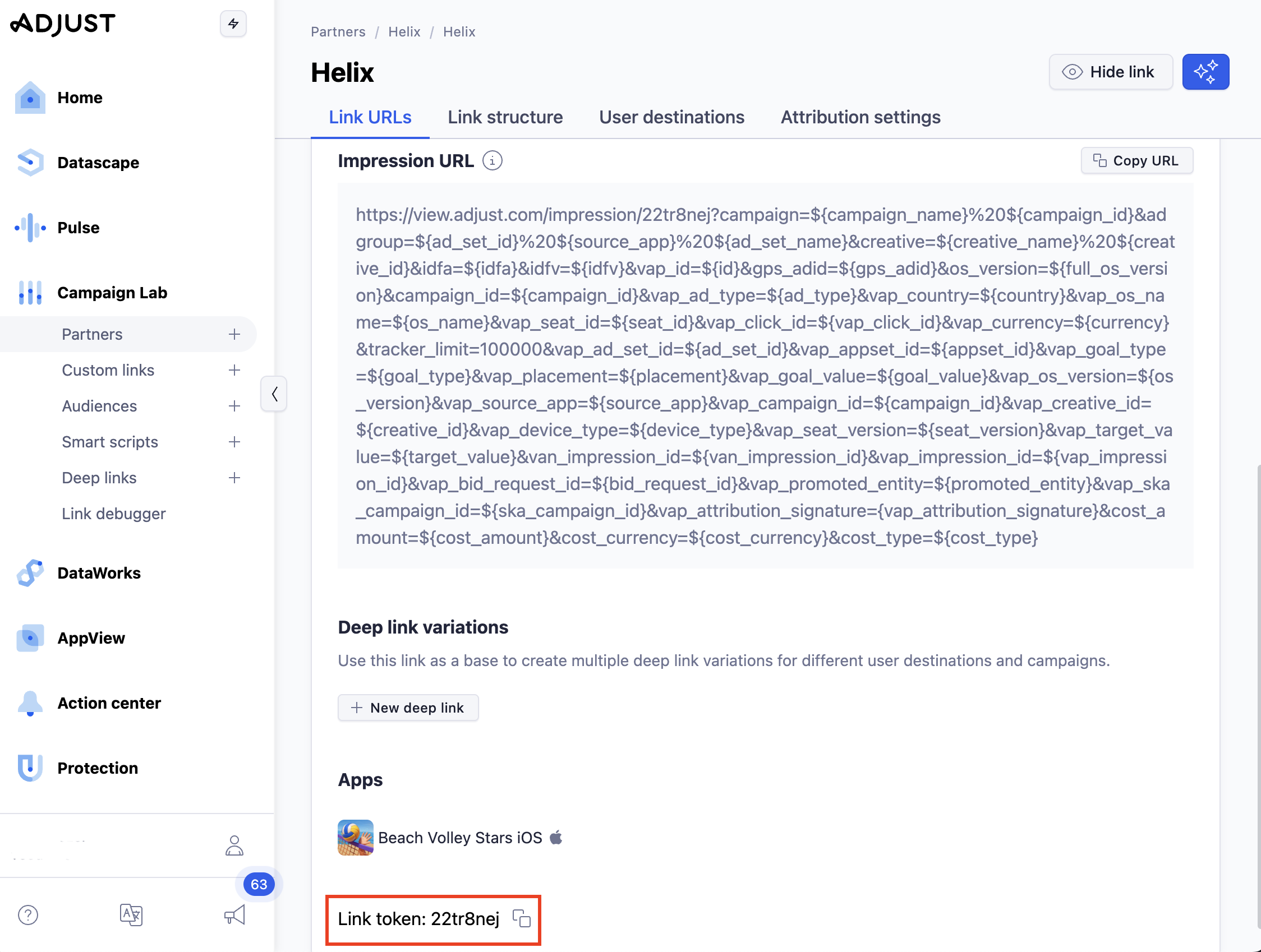
Copy your **link token** to be used in [Helix settings](/user-acquisition/add-your-application.md). The link token is shown at the bottom of the page immediately after the link is created.
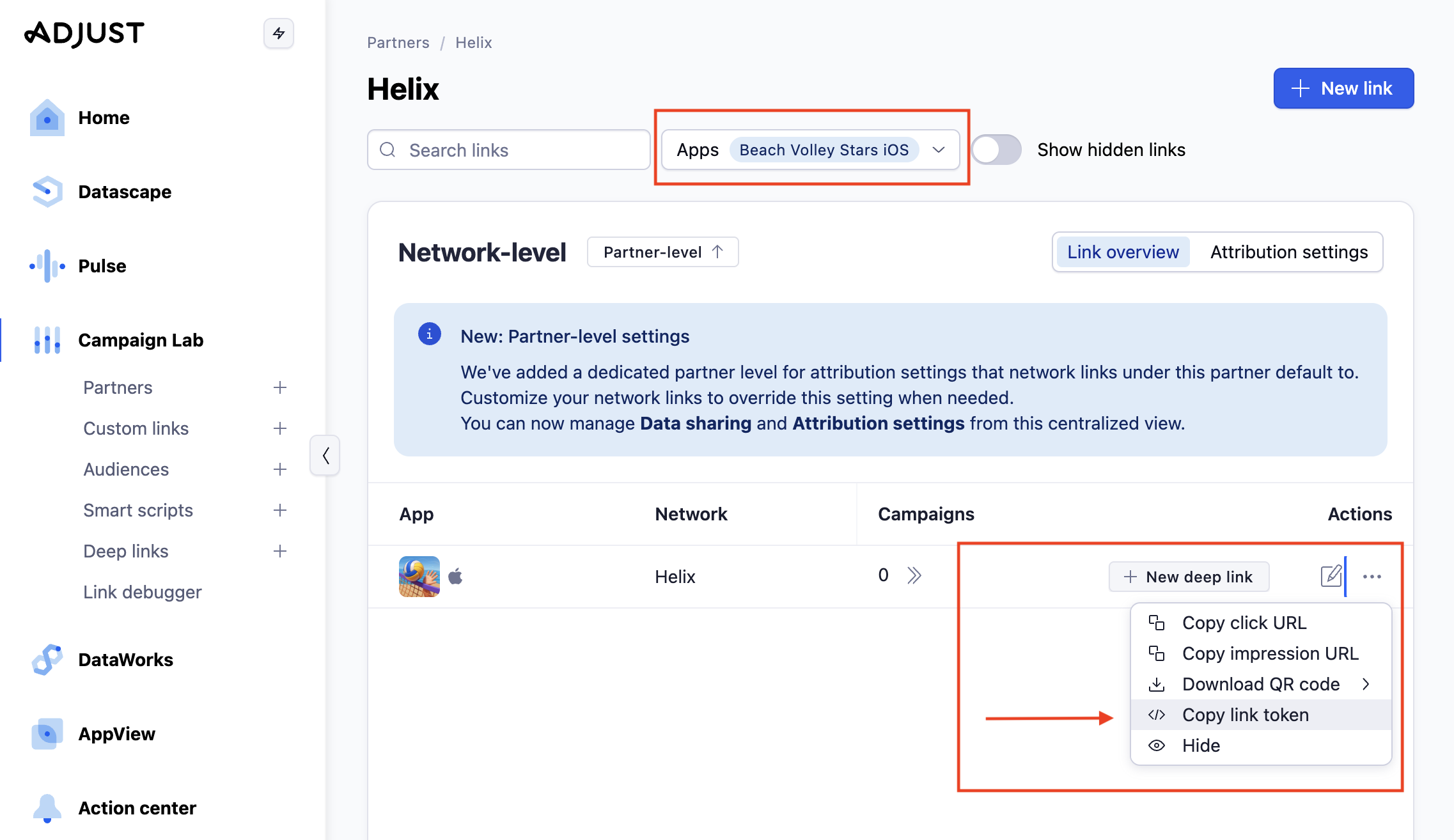
You can also retrieve the link token later from the Adjust dashboard.
* Go to **Campaign Lab → Partners →** Search for Helix then click on it.
* Select the application whose link token you want to find.
* Click on the three-dot menu and click on “**Copy link token**”.
{% hint style="info" %}
Please enter the token value in your [app’s tracking settings](/user-acquisition/add-your-application.md).
Helix will create an up-to-date version of the tracking URL using this token.
{% endhint %}
---
# Agent Instructions
This documentation is published with GitBook. GitBook is the documentation platform designed so that both humans and AI agents can read, navigate, and reason over technical content effectively. Learn more at gitbook.com.
## Querying This Documentation
If you need additional information that is not directly available in this page, you can query the documentation dynamically by asking a question.
Perform an HTTP GET request on the current page URL with the `ask` query parameter, and the optional `goal` query parameter:
```
GET https://docs.helix.voodoo.io/user-acquisition/integrate-your-mmp/adjust-integration.md?ask=&goal=
```
`ask` is the immediate question: it should be specific, self-contained, and written in natural language.
`goal` is optional and describes the broader end goal you are ultimately trying to accomplish on behalf of the user. GitBook uses it to tailor the answer towards what is most useful for that goal.
The response will contain a direct answer to the question and relevant excerpts and sources from the documentation.
Use this mechanism when the answer is not explicitly present in the current page, you need clarification or additional context, or you want to retrieve related documentation sections.